
 Create a Student Account

Getting a clear view of how components are connected can sometimes be tricky. This tech tip will hopefully help to shed some light.
- Start by showing the mates in the graphics area either by hitting the ‘J’ on your keyboard toggling visibility of all mates or right-clicking a specific component (or components) to show only those mates.

- From there you can left-click and hold on any mate symbol in the graphics area to isolate the components involved in that particular mate.

Interested in learning more Onshape Tech Tips? You can review the most recent technical blogs here.
Latest Content
- Blog
- Becoming an Expert
- Assemblies
- Simulation
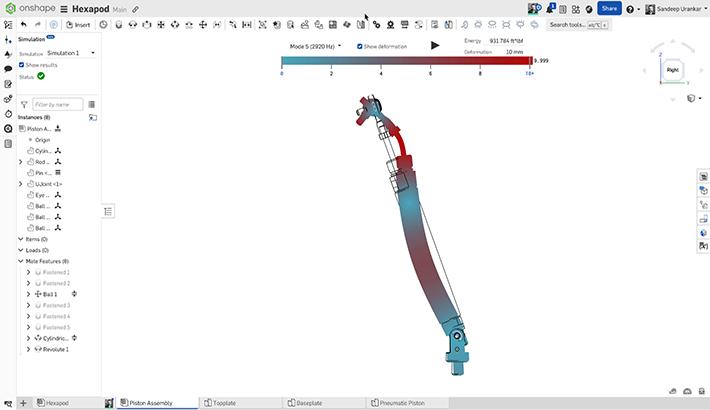
Mastering Kinematics: A Deeper Dive into Onshape Assemblies, Mates, and Simulation
12.11.2025 learn more
- Blog
- Evaluating Onshape
- Learning Center
AI in CAD: How Onshape Makes Intelligence Part of Your Daily Workflow
12.10.2025 learn more
- Blog
- Evaluating Onshape
- Assemblies
- Drawings
- Features
- Parts
- Sketches
- Branching & Merging
- Release Management
- Documents
- Collaboration
Onshape Explained: 17 Features That Define Cloud-Native CAD
12.05.2025 learn more


